
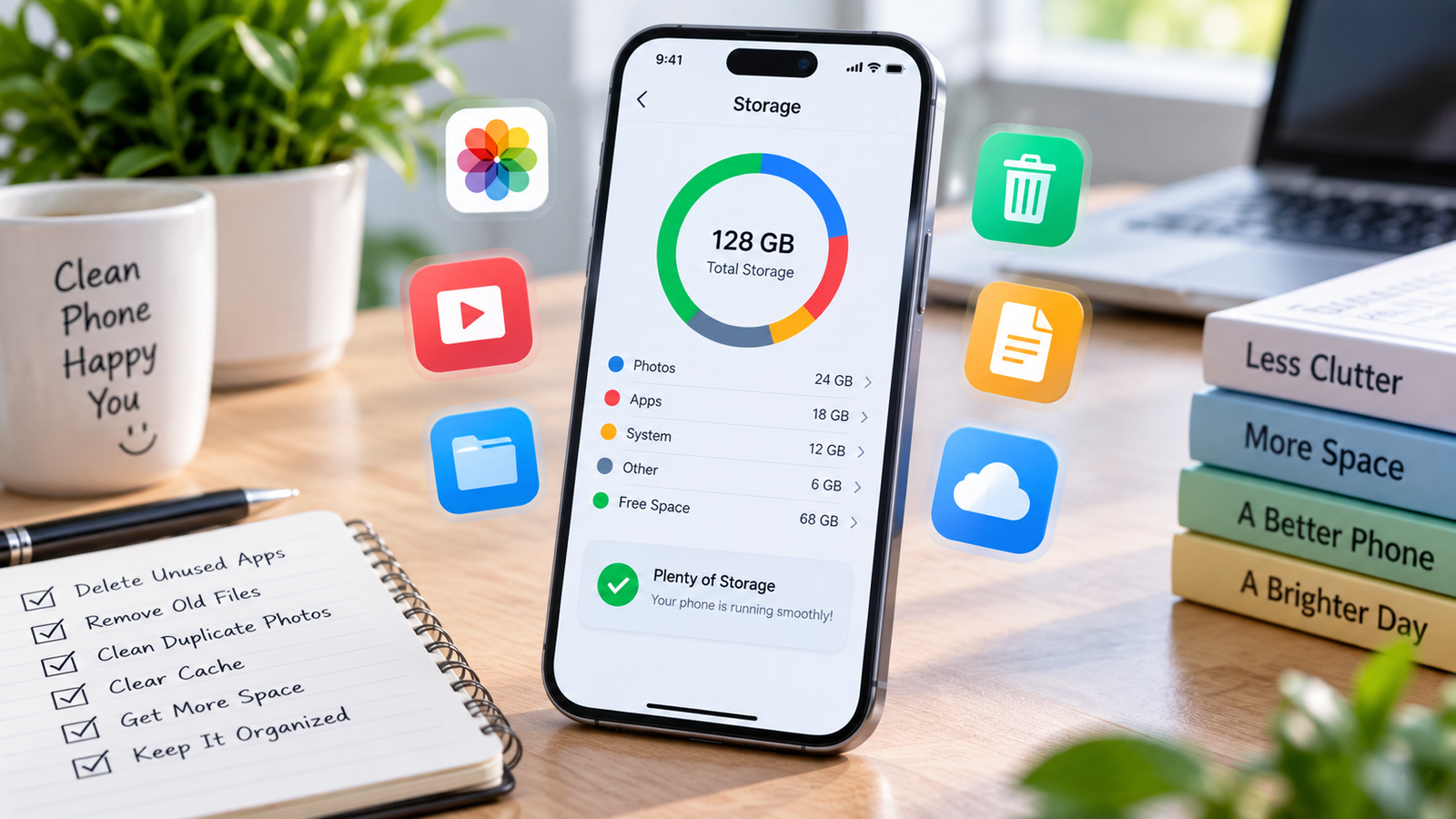
How to Free Up Storage on Your Phone: 10 Safe Ways to Get More Space in 2026
Running out of storage can make your phone difficult to use. Photos, videos, downloaded files, apps, messages, and temporary data can gradually consume available space.
The good news is that you usually do not need to delete important files or buy a new phone. A few simple storage-management steps can help you recover space and keep your phone organized.
In this guide, you will learn how to free up storage on your phone safely, whether you use an Android phone or an iPhone.
Why Does Phone Storage Fill Up?
Phone storage can disappear surprisingly quickly because many different types of data are saved on your device.
- Photos and videos
- Downloaded movies, music, and documents
- Unused applications
- Large messaging attachments
- Duplicate photos and videos
- Offline content from apps
- Temporary files and cached data
- Old screenshots and screen recordings
Before deleting anything, check your phone's built-in storage settings to see which categories are using the most space.
1. Check What Is Using Your Storage
The first step is to find out exactly what is taking up space. This prevents you from deleting files unnecessarily.
Android
On many Android phones, open Settings → Storage. You can then select a category to see which files or apps are using storage.
Google's official Android guide also recommends checking storage categories before deciding what to remove.
Read Google's official Android storage guide
iPhone
On an iPhone, go to Settings → General → iPhone Storage. You can see how much storage is available and how much space individual apps are using.
Check Apple's official iPhone storage guide
2. Delete Unnecessary Videos
Videos often use much more storage than photos. Old recordings, downloaded videos, screen recordings, and duplicate clips can quickly consume several gigabytes.
Open your photo or gallery app and review large videos first. Delete videos that you no longer need.
Before deleting important videos, make sure you have another copy if you want to keep them.
Also check your Recently Deleted or Trash folder. Deleted items may continue using storage until they are permanently removed.
3. Remove Old Downloads
The Downloads folder can become a hidden source of storage problems.
Old PDFs, documents, ZIP files, images, installation files, and other downloaded files may still be stored on your phone even though you no longer need them.
Open your phone's file manager and review the Downloads folder. Delete files that are no longer useful.
Always check a file before deleting it, especially if it could be related to work, school, travel, or another important activity.
4. Uninstall Apps You No Longer Use
Unused apps can take up storage even when you rarely open them. Some apps may also store additional data or offline content.
Review your installed applications and ask yourself:
- Have I used this app recently?
- Do I still need it?
- Is there another way to access the same service?
- Is the app using a large amount of storage?
If you no longer need an app, uninstalling it can immediately free up space.
Android app archiving
Some Android devices also support automatic app archiving. This can remove unused apps while keeping personal app data so the app can be downloaded again later when needed.
See Google's Android storage and app-management recommendations
iPhone Offload Unused Apps
iPhone storage settings may recommend Offload Unused Apps. Offloading removes the app itself while keeping its documents and data, allowing you to reinstall the app later.
Learn more about iPhone storage recommendations
5. Remove Duplicate Photos
It is common to have multiple copies of the same photo. Screenshots, edited versions, downloaded images, and repeated camera shots can make your photo library unnecessarily large.
Review your gallery and remove obvious duplicates, blurry images, and photos you no longer want.
Some phones and photo-management tools can help identify duplicate files. Review the suggestions carefully before permanently deleting anything.
Do not delete important photos unless you are sure you have another copy or backup.
6. Review Screenshots and Screen Recordings
Screenshots can accumulate over time without you noticing. You may have screenshots of shopping products, conversations, instructions, receipts, maps, or temporary information that you no longer need.
Review your screenshots and delete those that have become unnecessary.
Android users can also use supported file-management tools to find old screenshots and other unnecessary files.
See Google's official guide to deleting old screenshots
7. Review Messaging App Media
Messaging applications can accumulate large numbers of photos, videos, documents, and other attachments.
If you use WhatsApp or another messaging service frequently, check which conversations are storing large amounts of media.
You may find old videos, forwarded images, documents, or other files that are no longer useful.
Delete unnecessary media rather than deleting an entire conversation if you want to keep your messages.
Before deleting anything important, make sure you understand whether the file is stored only on your phone or is also backed up somewhere else.
8. Check Offline Downloads
Many applications allow you to download content for offline use. This is convenient, but downloaded content can occupy a significant amount of storage.
Check applications that you use for:
- Offline videos
- Downloaded music
- Offline maps
- Podcasts
- Saved documents
- Offline reading content
Remove offline content that you have already watched, listened to, or no longer need.
9. Manage Cloud Photos and Backups Carefully
Cloud storage can help you keep important photos and files available without keeping every full-size copy on your phone.
However, do not delete local files simply because you think they are backed up.
First confirm that the photos or files have successfully synced or backed up. Then use the storage-management options provided by your cloud service or phone.
iPhone and iCloud Photos
Apple provides an Optimise iPhone Storage option for iCloud Photos. When enabled, full-resolution photos and videos can be stored in iCloud while space-saving versions remain on the device when needed.
Read Apple's official guide to managing photo and video storage
10. Clear Temporary or Cached Data Carefully
Some applications store temporary files and cached data. Depending on your phone and the application, clearing unnecessary cached data may recover some storage.
Android
Android devices may provide options to clear an app's cache. The exact steps can vary depending on the phone manufacturer and Android version.
Google explains that clearing an app's cache removes temporary data, while clearing an app's storage or data can permanently remove the app's stored data.
Be careful: Clearing app data is not the same as clearing cache. Do not use the storage/data option unless you understand what information will be removed.
See Google's official Android instructions for clearing app cache and data
iPhone
iPhone users generally do not need to manually clear app caches. Instead, check the iPhone Storage recommendations and individual app storage information.
Bonus Tip: Use Built-In Storage Tools
Before installing a third-party "phone cleaner" application, check the tools already provided by your phone.
Android users can also use Files by Google to find suggested files, duplicate files, screenshots, unused apps, and other items that may be taking up space.
Learn how Files by Google can help manage storage
Using built-in or official tools can make storage management easier while reducing the need for unknown cleaning applications.
What Should You Not Delete?
Freeing storage does not mean deleting everything you do not immediately recognize.
Be especially careful with:
- Important personal photos and videos
- Work documents
- School documents
- Important messages and attachments
- Authentication or security-related files
- Files required by applications
- Files that have not been backed up
- System files
If you are unsure what a system file does, leave it alone rather than deleting it manually.
Android vs. iPhone Storage Tips
Android
Android devices provide different storage-management options depending on the manufacturer and software version.
Start with the built-in Storage settings and review large files, downloads, unused apps, screenshots, and media.
Google also provides official guidance for finding storage usage and freeing up space on Android devices.
Android: Free up storage on your device
iPhone
iPhone users can go to Settings → General → iPhone Storage to see how much space individual apps and content categories are using.
iOS may also provide recommendations for reducing storage usage. Review these recommendations before deleting anything important.
iPhone: Check and manage device storage
How Much Free Storage Should You Keep?
There is no single amount of free storage that works for every phone. The amount you need depends on your device, operating system, applications, photos, videos, and how you use your phone.
As a practical habit, avoid allowing your phone to remain almost completely full. Keeping some available space gives you room for new photos, videos, app updates, downloads, and other data.
What If My Phone Is Still Slow After Freeing Storage?
Storage is only one possible reason for a slow phone. Background activity, demanding applications, outdated software, battery condition, and other factors can also affect performance.
If your phone is also running slowly, read our guide: How to Make Your Phone Faster: 10 Simple Tips That Work in 2026 .
If you want to reduce the amount of time you spend on your phone, you can also read: 10 Easy Ways to Reduce Screen Time in 2026 .
Frequently Asked Questions
How can I free up storage on my phone quickly?
Start by checking your storage settings and look for large videos, unused apps, downloads, duplicate photos, screenshots, and offline content. These areas often provide some of the easiest opportunities to recover space.
Do photos and videos use a lot of phone storage?
Yes. High-resolution photos and especially videos can consume significant storage. Reviewing large and unnecessary media files can be an effective way to recover space.
Should I delete cached data?
On Android, clearing an app's cache can remove temporary data and may recover some space. However, clearing an app's storage or data is different and can remove information stored by the app.
If you are unsure, use your phone's built-in storage recommendations rather than deleting files manually.
Is it safe to delete old downloads?
Usually, yes, if you are certain that you no longer need the files. Always review the file before deleting it, especially if it is a document or another important file.
Can cloud storage help free up phone storage?
Yes. Cloud storage can help keep photos and files available without requiring every full-resolution copy to remain on your phone. Make sure important files are successfully backed up before removing local copies.
Why does my phone storage fill up again?
Storage can gradually fill again because new photos, videos, downloads, app data, messages, and offline content continue to accumulate.
A quick storage review every few weeks or once a month can help prevent the problem from returning.
Simple Monthly Phone Storage Checklist
You can use this quick checklist once a month:
- Check your phone's storage settings.
- Delete unnecessary large videos.
- Remove old downloads.
- Review screenshots.
- Delete duplicate or unwanted photos.
- Remove unused apps.
- Review messaging app media.
- Remove old offline downloads.
- Check whether important photos are backed up.
- Review storage again after cleaning.
Final Thoughts
Learning how to free up storage on your phone does not require complicated tools.
Start by checking which categories are using the most space. Then safely remove unnecessary videos, downloads, screenshots, duplicate photos, unused apps, and offline content.
The most important rule is to check before deleting. Back up important files and avoid removing system files or anything you do not recognize.
With a simple monthly storage check, you can keep your Android or iPhone more organized and have more space for the things you actually use.
For more practical technology, productivity, and everyday guides, visit WriteHubDaily .
Disclaimer: This article provides general technology information for educational purposes. Menu names, storage options, and available features can vary depending on your phone model, operating system, manufacturer, and software version.